Why You MUST Outline Fonts for Print Before Sending Artwork
Ever approved a proof only to see your final print come back looking “off”? One of the simplest ways to prevent that headache is to outline fonts for print before submitting your files. When you convert type to vector shapes, your typography stays exactly as designed—no substitutions, no reflow, and no last‑minute surprises. At Phoenix Graphics, we see how this small step protects brand consistency, saves time, and avoids costly reprints.
In this guide, you’ll learn what outlining fonts means, why it matters for signage and large-format printing, how to do it correctly, and a few pro tips to keep your artwork production-ready across events, schools, safety signage, banners, ACM panels, and more.
What Does “Outlining Fonts” Mean?
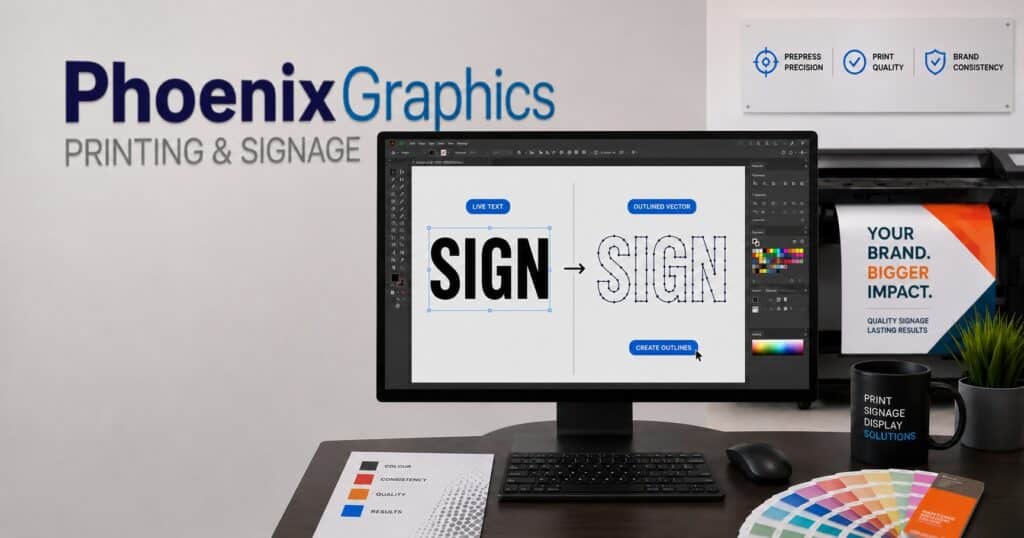
Outlining fonts converts live, editable text into vector shapes. Each character becomes a precise graphic object, so the artwork no longer depends on a specific font being installed on another computer.
- Benefit: Your text looks identical on every device and in every workflow.
- Caution: Outlined text can’t be typed over—so always save a separate, editable version first.
When you outline fonts for print, you’re essentially “locking in” your typography at the design stage, ensuring 1:1 accuracy in production.
Why Outlining Fonts Matters for Print Quality
Outlining fonts isn’t just a technicality—it’s a safeguard against delay, inconsistency, and extra costs.
- Ensures your design prints exactly as intended. No stray substitutions or spacing changes mid‑workflow.
- Prevents production delays. Missing fonts stall jobs while teams chase files, approvals, or alternatives.
- Protects your brand. Your logo, headlines, and callouts retain their exact shapes and proportions.
- Preserves custom typography. Kerning, tracking, and hand-tuned lettering stay perfect.
- Improves cross-system compatibility. Files pass smoothly between designers, clients, printers, and installers.
For fast-moving campaigns, events, and multi-venue rollouts, avoiding font issues can be the difference between an on-time install and an expensive reschedule.
What Happens If Fonts Aren’t Outlined?
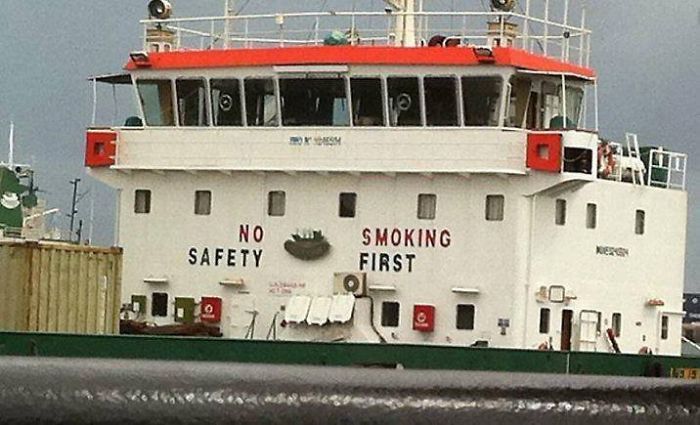
When fonts remain live and a system can’t find them, software may make its own substitutions. Common fallout includes:
- Fonts replaced with incorrect alternatives
- Layout reflow and line breaks shifting
- Missing characters or symbols
- Logos and wordmarks rendering incorrectly
- Production delays and extra approval rounds
These risks multiply under tight event deadlines or multi-stakeholder projects, increasing stress, cost, and turnaround time.
How to Outline Fonts
Adobe Illustrator
- Save an editable copy of your artwork first.
- Select all text.
- Go to Type > Create Outlines.
- Save or export your print-ready PDF.
Quick Check:
Try editing the text with the Type Tool. If you can’t edit it, the fonts have been outlined.
Adobe InDesign
- Save a copy of your file.
- Select all text.
- Go to Type > Create Outlines.
- Export your PDF.
Alternative:
You can simply export a high-quality PDF with fonts embedded if your printer accepts embedded fonts.
Adobe Acrobat Pro (PDF)
- Open your PDF.
- Go to Tools > Print Production > Preflight.
- Select Convert Fonts to Outlines.
- Save the new PDF.
Not Sure?
Send us your artwork and PDF, and we’ll help make sure it’s print-ready. 😊
Tip: Always keep an editable version of your file before outlining fonts, as outlined text can no longer be edited.
Pro Tips for Signage and Large-Format Files
Large-format environments add unique variables. Use these best practices alongside outlining:
- Keep a master, editable file. Outline only the version you’re sending to print.
- Check minimum sizes. For distance readability, avoid tiny type; test at 100% scale.
- Use vector logos. Supply EPS/SVG/PDF versions and outline those fonts too.
- Mind stroke weights. Hairline strokes can disappear at scale—use practical thickness.
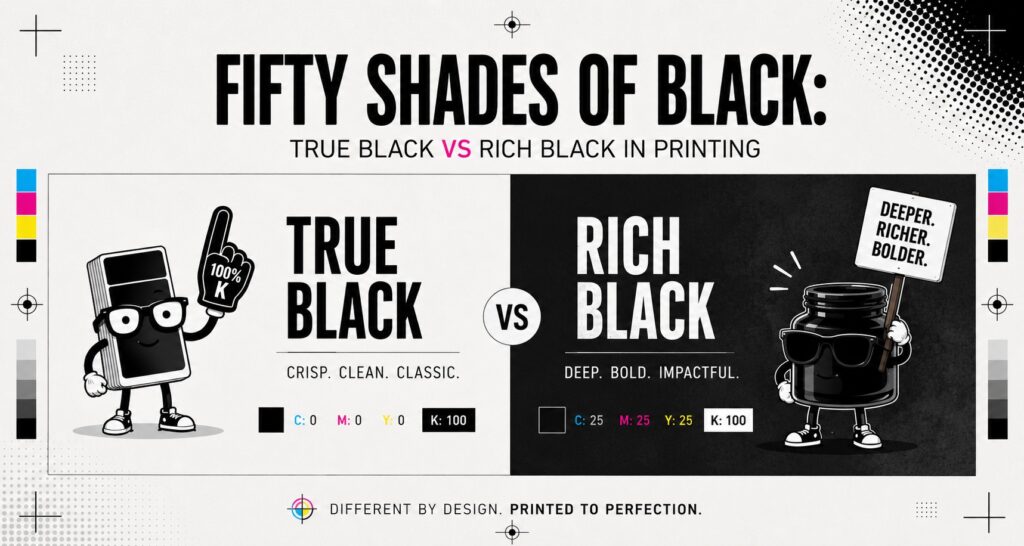
- Set blacks correctly. Use 100K for small text; use rich black for large solid areas.
- Embed linked images. Ensure high-res assets are included or packaged.
- Confirm overprint/knockout. Especially on spot colours and white ink layers.
Following these steps plus choosing to outline fonts for print helps avoid rework and keeps installations on schedule.
When Shouldn’t You Outline Fonts?
There are rare cases where live text is preferable:
- Accessible PDFs that require selectable, screen-readable text
- Editable templates your team updates frequently
- Dynamic documents with variable data
In these scenarios, provide two versions:
- An editable, packaged file for future changes, and
- A separate print-ready PDF where you outline fonts for production accuracy.
Get Your Artwork Print‑Ready with Phoenix Graphics
Avoid costly delays and protect your brand. Our prepress team will review your files, outline fonts where needed, and flag any issues before production.
Book a Free Artwork Check or Request a Custom Quote
Getting your artwork right up front saves time, money, and stress—especially when deadlines are tight. At Phoenix Graphics, we’ll give you facts, not fluff, and guide you to the best setup for your environment and application. We combine expert advice, premium materials, and reliable turnaround to make your brand look incredible in any space.
Frequently Asked Questions
Q: Do I still need to send font files if I outline fonts?
A: No. Once outlined, the text becomes vector shapes, so the font files aren’t required. Still, keep your editable source files and fonts archived for future updates.
Q: Will outlining fonts reduce print quality?
A: Not at all. Outlining preserves the exact shapes of your characters. In fact, it often improves consistency by removing font-dependency across systems.
Q: Can Phoenix Graphics outline fonts for me?
A: Yes. Send us your packaged files or PDFs and we’ll help convert, preflight, and prepare everything—from banners and stickers to ACM and foam PVC panels—so it prints right the first time.
Written by Phoenix Graphics Team